

Photo collage is an interesting idea that involves using several photos to create one design. It may be used for vacation photo presentations or any other reason, such as making a gift for someone on a special occasion or creating content for your social media page.
You will be able to represent your most memorable photos conveniently.Photoshop is one of the most powerful photo editors that gives users full control over the creation of collages as well as all other designs. The program allows you to resize images, add some elements to them, change the background, and perform other actions to get a unique collage. In case you have ever wondered how to make a collage in Photoshop, our guide will help you make a nice design easily.
In order to start creating your own collage, it is recommended to look through some examples first. Here are 20-30 photo collage ideas for you: https://www.saivionindia.com/blog/20-30-photo-collage/
In this article, you’ll learn how to create a photo collage Photoshop project from scratch, discover essential Photoshop tools, and see an example of a photo collage that inspires your next creative design.
What Is a Photo Collage?
A photo collage is a single design created by combining multiple photographs into one organized layout. Instead of displaying each picture separately, a collage arranges them creatively to tell a story, highlight an event, or showcase a collection of memories. From family albums and travel journals to wedding invitations and business presentations, photo collages are used in both personal and professional projects.
One of the biggest advantages of creating a collage in Photoshop is the freedom to customize every detail. You can adjust image sizes, change backgrounds, add decorative elements, include text, and experiment with different layouts until the final design perfectly matches your vision.
Why Are Photo Collages So Popular?

Photo collages allow you to share more than one memory without overwhelming the viewer. Rather than scrolling through dozens of separate images, people can enjoy multiple moments within a single, visually appealing design. This makes colleges ideal for storytelling, social media, marketing campaigns, and personalized gifts.
Modern collage designs also help organize photographs more effectively by grouping related images together. Whether you’re celebrating a birthday, documenting a vacation, or promoting products, a well-designed collage creates a stronger visual impact than individual photographs.
Where Can You Use a Photo Collage?
Photo collages are incredibly versatile and suitable for many creative projects. Businesses use them for promotional banners and advertisements, photographers include them in portfolios, and families preserve memories through personalized photo books and wall art.
They are also widely used on platforms like Instagram, Facebook, Pinterest, and websites because they quickly capture attention and encourage viewers to engage with your content.
Benefits of Creating a Photo Collage
Learning how to make a collage on Photoshop offers more than just creative satisfaction. A professionally designed collage allows you to present multiple photographs in a clean and visually balanced format while adding a personal touch to every project.
Some of the biggest benefits include:
- Display multiple images in one attractive layout.
- Tell a story through a collection of photographs.
- Create personalized gifts for family and friends.
- Design engaging social media posts and banners.
- Showcase photography portfolios professionally.
- Save space without sacrificing important memories.
Whether you’re designing for personal use or professional projects, a well-crafted photo collage Photoshop design helps your images stand out while communicating your story more effectively.
How to Make a Collage on Photoshop
Creating a collage in Photoshop may seem complicated at first, but the process becomes straightforward once you understand the basic workflow. By following a few simple steps, you can design a collage that looks polished, balanced, and visually appealing.
Create a New Photoshop Document
Firstly, open Photoshop and create a new document. Make sure that the size of the document corresponds to the application you will use. For instance, a square document fits an Instagram collage, while larger documents suit a poster and print collage.
The second point you need to think about is the resolution. You can set it to 72 PPI if you work on a digital collage. 300 PPI is required for quality printing.
Choose High-Quality Photos
The effectiveness of the collage is dependent on the choice of photographs to use. Use the photographs that have something to do with a specific theme, an event, or a story. Examples include travel shots, family pictures, wedding shots, or product photographs. Using high-resolution photographs is important in ensuring that the quality of the photograph is not lost when resizing and editing.
Import Images into Photoshop
Import your pictures into Photoshop using the Place Embedded feature under the File menu or by dragging them onto the canvas.
It becomes much easier to work with your photographs since they will be placed on separate layers. This means that you are able to move, resize, rotate, or crop your images without altering any other element of your collage.
Arrange Your Layout
The fun begins here. Arrange your photos in a way that complements your story and creates balance in your design. Using Photoshop, you have the freedom to explore any type of design you want for your layout, whether it’s grid design, overlapping images, circles, or even just randomly placed.
Consider spacing and proper alignment when designing your layout. Shadows, borders, or an uncluttered background would give each photo more impact.
Best Photoshop Tools for Creating a Photo Collage
Move Tool
The Move Tool allows you to position, align, and organize photographs accurately within your collage. Photoshop’s alignment guides make it easier to create balanced layouts with consistent spacing.
Layer Masks
Layer Masks allow you to blend overlapping images smoothly without permanently deleting any part of a photograph. This non-destructive editing technique gives you complete creative flexibility while preserving the original images.
Clipping Masks
Clipping Masks let you place photographs inside custom shapes such as circles, hearts, letters, or geometric designs. They’re perfect for creating modern and eye-catching collage layouts.
Transform Tool
The Transform Tool enables you to resize, rotate, flip, and reposition photographs while maintaining their quality. It gives you complete control over the placement of every image within the collage.
Text Tool
The Text Tool allows you to personalize your collage by adding names, dates, quotes, captions, or event details. Choosing clean, readable fonts helps create a polished and professional final design.
Example of a Photo Collage
Example
The following examples might help you get a better idea about how photo collages are used for presenting multiple images in one frame. For instance, consider a travel collage that includes pictures of popular sites, local food, beautiful scenery and other important events of your vacation experience. It is not an individual image that you see in a collage; rather, it is the whole story told using images.
In case of a family collage, there could be the images from childhood, weddings, graduations and festive occasions placed in chronological order. Collages are often used by businesses to present their product lines or show before and after transformations.
Popular Photo Collage Ideas
There are countless ways to design a collage depending on your purpose and creativity.
Some popular ideas include:
- Wedding and anniversary collages
- Family memory boards
- Travel and vacation collages
- Birthday celebration layouts
- Baby milestone collages
- Product showcase collages
- Social media promotional designs
Choosing a theme before arranging your images helps create a collage that feels organized and tells a complete story.
Tips for Creating a Professional Photo Collage Photoshop Design
Creating a beautiful photo collage Photoshop project requires more than simply placing multiple images on a canvas. Paying attention to design principles can make your collage look polished and visually balanced.
Keep the Layout Simple
A clean layout often creates a stronger visual impact than an overcrowded design. Leave enough spacing between photographs so each image can be appreciated without distracting from the others.
Using a consistent alignment also helps create a professional appearance, especially when working with multiple photographs.
Use a Consistent Color Theme
Images with similar lighting and color tones blend together more naturally. If some photos appear brighter or warmer than others, use Photoshop’s adjustment tools to balance the colors before finalizing the collage.
Maintaining a consistent color palette gives the entire design a cohesive and professional look.
Add Text Carefully
Adding names, dates, short captions, or inspirational quotes can make your collage more meaningful. However, avoid filling the design with too much text.Choose one or two easy-to-read fonts that complement the overall style of the collage. Proper typography enhances the design without taking attention away from the photographs.
Common Mistakes to Avoid
Even experienced designers sometimes make mistakes that reduce the overall quality of a collage. Avoiding these common issues can help you create a cleaner and more professional design.
Using Low-Resolution Images
Poor-quality images become blurry when enlarged, reducing the overall appearance of the collage. Always use high-resolution photographs whenever possible.
Overcrowding the Canvas
Adding too many images can make the collage look cluttered and confusing. Focus on selecting your best photographs rather than including every available picture.
Ignoring Alignment and Spacing
Uneven spacing and poorly aligned images make a collage appear unprofessional. Photoshop’s alignment guides and rulers can help create a neat and balanced layout.
Applying Too Many Effects
While filters, shadows, and decorative elements can improve a collage, using too many effects often distracts from the photographs themselves. A simple, clean design usually produces better results.
Why Choose Photoshop for Photo Collage Creation?
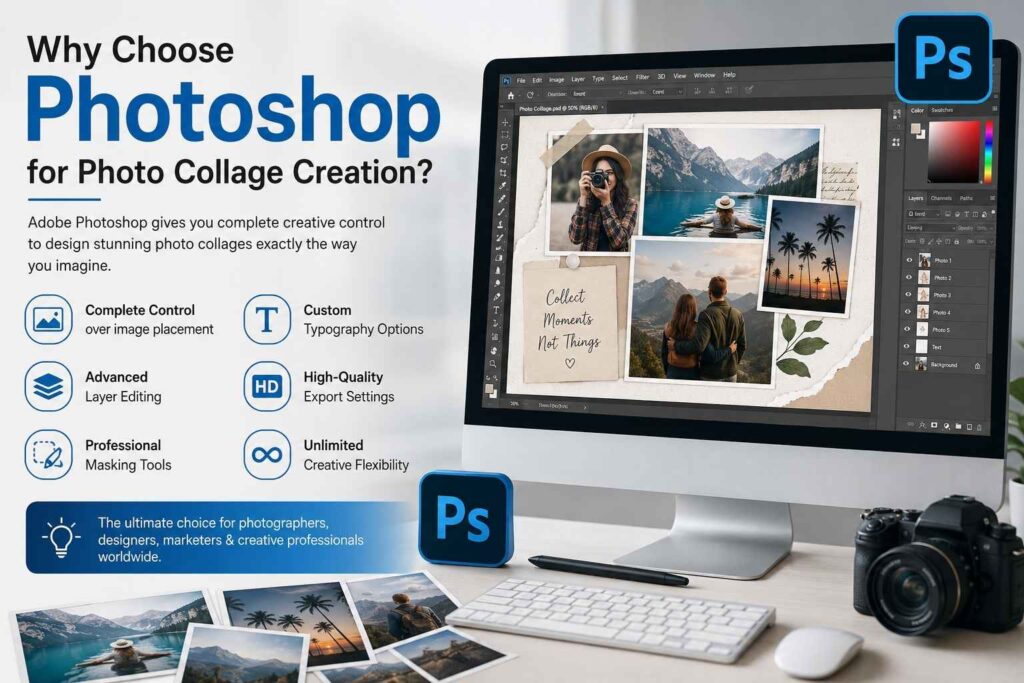
Adobe Photoshop remains one of the most powerful tools for collage design because it provides complete creative control. Unlike many online collage makers that offer limited templates, Photoshop allows you to customize every aspect of your project.
Whether you’re designing a simple two-photo layout or a complex composition featuring dozens of images, Photoshop gives you the flexibility to create exactly what you imagine.
Some of its biggest advantages include:
- Complete control over image placement
- Advanced layer editing
- Professional masking tools
- Custom typography options
- High-quality export settings
- Unlimited creative flexibility
These features make Photoshop the preferred choice for photographers, graphic designers, marketers, and creative professionals around the world.
Conclusion
Mastering the process of creating collages in Photoshop enables one to explore the unlimited potential of this amazing piece of art. Regardless of whether you are working on making a family album, a travel collage, a marketing picture or a social media content, everything that is necessary to make a perfect collage will be at your disposal in Photoshop.
Selecting high-quality photos, arranging them properly with the use of such functions as Layer Masks, Clipping Masks and the Transform Tool will result in an impressive photo collage in Photoshop. Examining an example of a photo collage may additionally give you some great ideas regarding possible layouts.
Before exporting your collage, remember to:
- Use high-resolution images for the best quality.
- Maintain consistent spacing and alignment.
- Keep your color palette balanced.
- Add text only when it enhances the design.
- Save your project as a PSD file for future editing.
With a little practice and creativity, Photoshop becomes an incredibly powerful tool for turning ordinary photographs into eye-catching collages that preserve memories, promote brands, and capture attention. Whether you’re a beginner or an experienced designer, mastering collage creation is a valuable skill that will enhance your photo editing projects for years to come.
Frequently Asked Questions
Yes. Although Photoshop includes many advanced features, beginners can easily create beautiful collages by learning basic tools such as layers, the Move Tool, Transform, and Layer Masks.
There is no fixed limit. A collage may contain two photographs or more than thirty, depending on your design goals and available space.
For online sharing, JPEG and PNG are excellent choices. If you plan to edit the collage later, save a PSD version so all layers remain editable.
TAGS
